Quick timers and presets: a running timer in seconds
Not every timer needs a name, a color and a sound of its own. For the pasta, the parking meter or a callback in ten minutes, a duration is all it takes. And a fixed routine like Pomodoro or a HIIT workout doesn’t have to be typed in by hand, phase by phase. Timers & Alarms has a short way to both: the quick timer and the presets. Here is how each one works, and which one fits when.
A quick timer in two taps
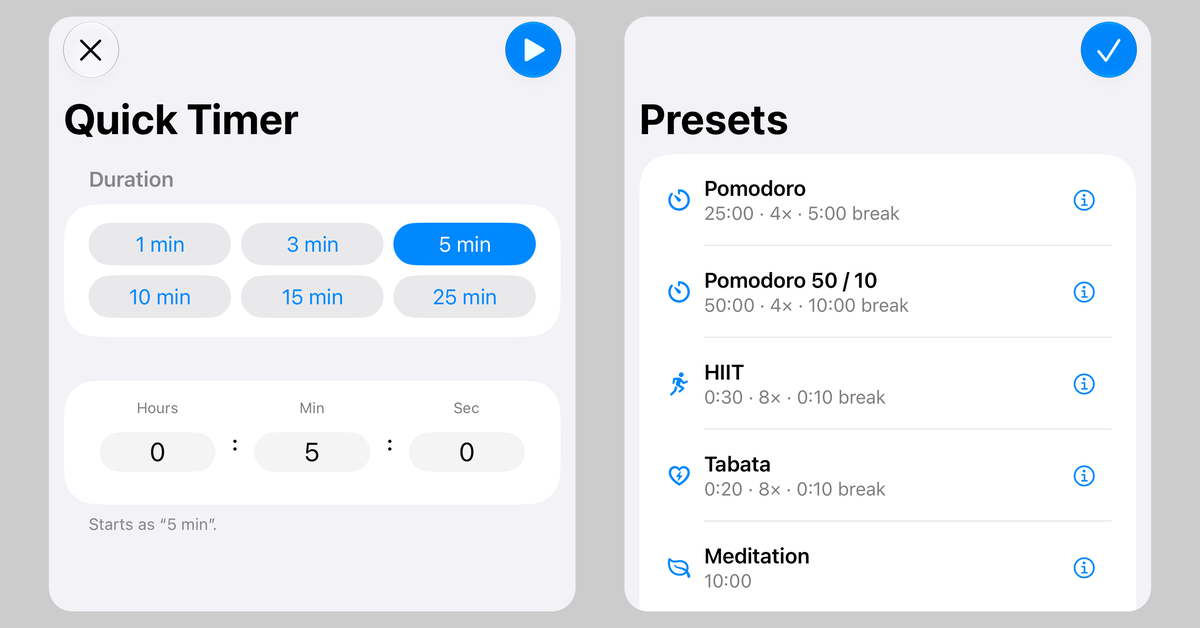
In the timer list, a lightning bolt sits beside “+”. Tap it, and the quick timer opens with 5 minutes already chosen. Tap the play button, and the countdown starts.
If you need a different duration, tap one of the six duration chips, 1, 3, 5, 10, 15 or 25 min, or set the hours, minutes and seconds yourself. There’s no name to think up: a quick timer is named after its duration, such as “5 min”, “45 s” or “1:30” for a minute and a half. Below the picker, you can see the name it will get before you start it.
You’ll also find the quick timer in the menu under “+”, as the first item. With a hardware keyboard and iOS 27 or iPadOS 27, ⇧⌘N opens a quick timer and ⌘↩ starts it. The help page lists all keyboard shortcuts.
What makes a quick timer
A quick timer is meant for something you need right away but don’t want to start again and again. That’s why it cleans up after itself:
- It deletes itself as soon as you confirm its alarm or stop it early. Until then, you can pause and resume it like any other timer.
- You can have up to three quick timers at a time. Once you have three, the duration picker shows a note and won’t start another one until one is done or you delete one.
- You choose the color and sound once for all of them, in Settings under “Quick Timer Defaults”. The default neutral color adapts to light and dark mode. A change applies to quick timers you start afterwards.
- A quick timer doesn’t show up in Spotlight or in the timer picker in Shortcuts, and the backup file leaves it out. It would soon have disappeared from there anyway.
While it runs, it behaves like any other timer: it appears on the Lock Screen and in the Dynamic Island, as the post on Live Activities and the Dynamic Island describes.
Quick timers from the Home Screen and from Shortcuts
The way from the Home Screen is even shorter. The Quick Timer widget comes in Small and Medium. If you have no quick timer at the moment, the widget is a single button: one tap opens the app right at the duration picker. If some are already running, it shows them with their controls. The medium widget shows all of them side by side. The small one shows the one that is ringing or ends next, with the others in a line each below it. The help page explains how to add a widget.
The Shortcuts app has the action “Start a Quick Timer”. You give it minutes and seconds, and the timer starts without the app opening. You’ll also find the action in Spotlight, and you can add it as a step to your own shortcuts. The limit of three quick timers applies here too.
Presets: ready-made timers for fixed routines
In the timer list, tap “+” and then “From Preset…”. A gallery of ten presets opens. Under each name, you can see how the preset is built, for example “25:00 · 4× · 5:00 break”: 25 minutes, four rounds, with a 5-minute break in between. The info button next to it explains what a preset is for.
For working in focus blocks:
- Pomodoro: 25 min of focus and a 5 min break, four rounds. After the fourth round, a long 30 min break follows instead of the short one.
- Pomodoro 50 / 10: 50 min of focus and a 10 min break, four rounds.
For training and exercise:
- HIIT: 30 seconds of work and 10 seconds of rest, eight rounds.
- Tabata: 10 seconds to get ready, then 20 seconds of work and 10 seconds of rest, eight rounds.
- Stretching: ten stretches of 30 seconds each, with 5 seconds in between to switch.
For winding down:
- Meditation: 10 min, ending with a gentle sound.
- Power Nap: 20 min.
- Box Breathing: 4 seconds of breathing in or out, then 4 seconds of holding, in turn. The 16 rounds make eight full breaths.
For the kitchen:
- Green Tea: 2 min.
- Boiled Egg: 8 min.
From preset to your own timer
When you tap a preset, the app puts a copy in your timer list and opens it in the editor right away. Change whatever you like there, such as the duration, the rounds, the color, the sound or the names of the phases, and tap the checkmark. If you cancel, the copy stays in the list just as the preset set it up.
If a preset needs a feature you’ve turned off in Settings under “Features” (“Repeating Timer”, “Interval Timer” or “Warm-up & Cool-down”), the app asks first. “Continue” turns the feature back on. By default, all three are on.
Like all repeating and interval timers, a timer made from a preset doesn’t move on to the next phase by itself. When a phase ends, it alerts you and waits until you confirm. The posts on Pomodoro and on HIIT and workout intervals explain why, and how to work with it.
Because a preset becomes a regular timer, you’ll also find it in Spotlight, in Shortcuts and in the widgets, and it’s part of your backup file.
Quick timer, preset or new timer?
- A quick timer fits when all you need is a duration and the timer may disappear afterwards: pasta, parking meter, callback.
- A preset fits when you need a fixed routine with phases and rounds but don’t want to set it up yourself.
- “New Timer” in the menu under “+” fits when you want to choose every setting yourself.
If you start the same quick timer every day, say 3 minutes for your morning tea, a timer of your own is worth it. It keeps its name, stays in the list and can be started from a widget or from Shortcuts. The help page has all the details on quick timers and presets.
Get the app
Timers & Alarms is free on the App Store, with no ads and no tracking, for iPhone and iPad. Tap the badge below to install it.