Live Activities & the Dynamic Island
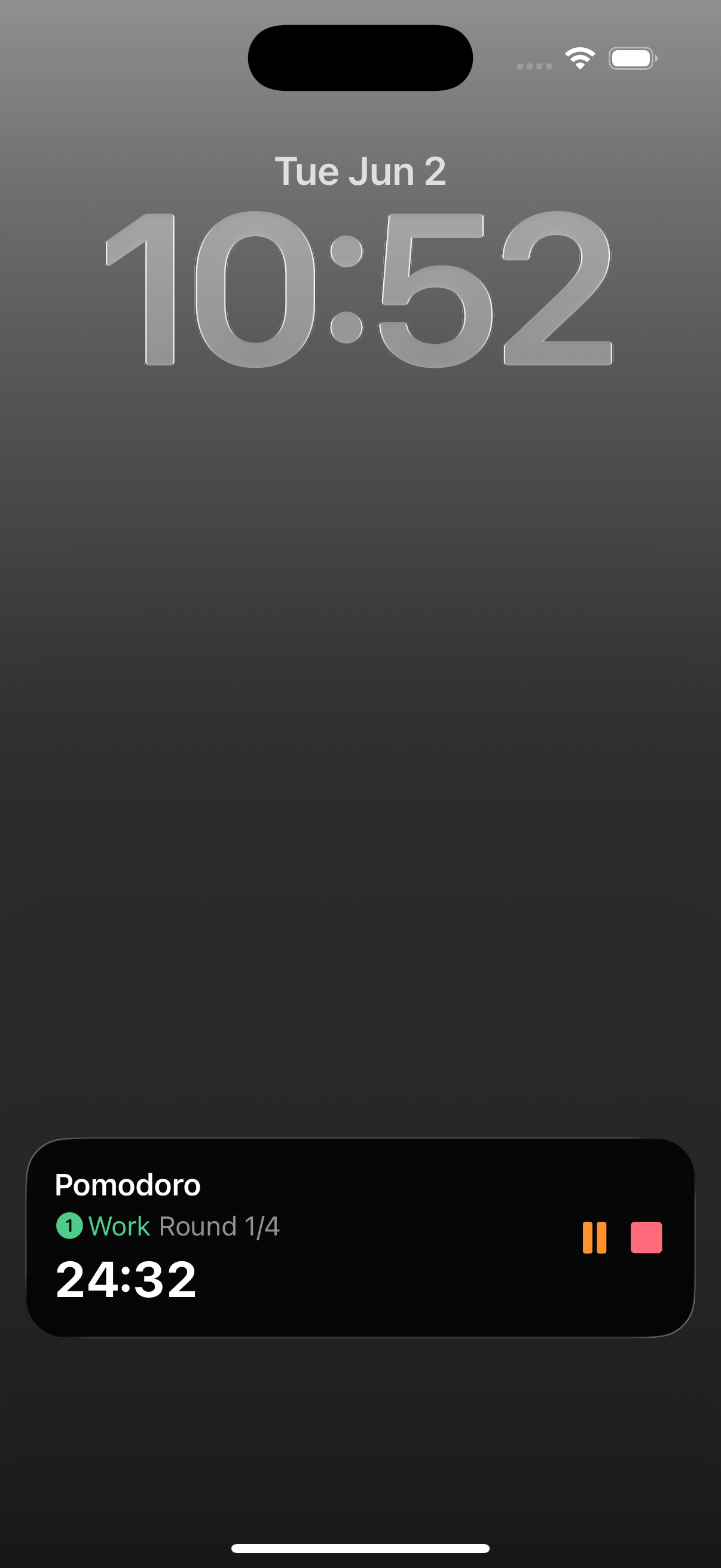
Start a timer, lock your iPhone, and the timer is still right there — not as a notification you have to chase, but as a live panel on the Lock Screen, and on iPhones that have it, in the Dynamic Island. Same timer, same countdown as in the app, with the buttons that matter one tap away. Here is what Timers & Alarms shows once you leave the app, and what you can do from there without going back in.
On the Lock Screen
While a timer runs, its Live Activity sits on the Lock Screen. It shows the timer’s name, the countdown ticking down in large, easy-to-read digits, and — for interval and repeating timers — the current phase and round, such as “Work · Round 1/4”. A plain one-off timer just shows its name and the countdown.
Two buttons sit on the right: Pause and Stop. Pause a timer and the buttons become Resume and Stop. You never have to open the app, and you don’t even have to unlock the phone.
In the Dynamic Island
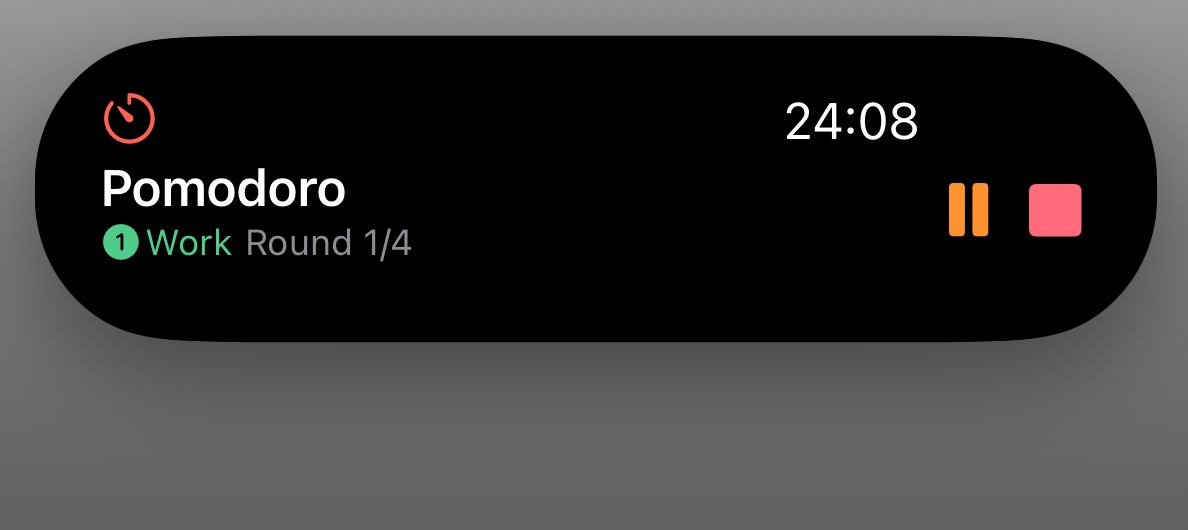
On an iPhone with the Dynamic Island, the same timer rides along at the top of the screen, in whichever size fits the moment:
- Compact — the timer icon on one side, the countdown on the other. This is what you see while you are in another app.
- Minimal — just the icon, used when the Dynamic Island is shared with something else, like music.
- Expanded — touch and hold the Dynamic Island and it opens to the full view: name, phase and round, countdown, and the same Pause, Resume, and Stop buttons as on the Lock Screen.
A glance tells you how much time is left. A touch and hold gives you the controls.
When a phase ends, or the timer finishes
Repeating and interval timers don’t jump to the next phase on their own — that pause between phases is deliberate, and it is the heart of how Pomodoro works in the app. When a round or phase ends, the Live Activity waits for you. It shows a button to move straight on — next to a “Dismiss” button to end it there.
When the whole timer is finished, the countdown reads “Done!” and a single tap dismisses it. You can do any of this wherever you happen to be looking: the Lock Screen, the Dynamic Island, the Home Screen widget, or the timer’s list or detail view in the app.
Alarms look a little different
A scheduled alarm — one tied to a weekday and time, rather than a countdown — shows its name when it rings, with Snooze and Dismiss in place of the round controls. Same place, same glanceable panel; the actions just match what an alarm needs.
Why it always matches the app
The number on your Lock Screen is the number that is actually counting down. Timers & Alarms is built on Apple’s AlarmKit, so the app, the Live Activity, the Dynamic Island, and the widgets all read from one schedule instead of each keeping its own copy in step. That shared source of truth is the change I wrote about in why I built the app — and it is the reason a glance is enough.
What you need
Timers & Alarms runs on iOS 26. The Live Activity appears on the Lock Screen of any iPhone that runs the app; the Dynamic Island view is there on iPhones that have it — the iPhone 14 Pro models and the iPhone 15 line-up onward (except iPhone 16e). There is nothing to switch on: start a timer, and it follows you out.
Get it
Timers & Alarms is free on the App Store, with no ads and no tracking. Tap the badge below to install it.