Backup, restore, and cross-device sync
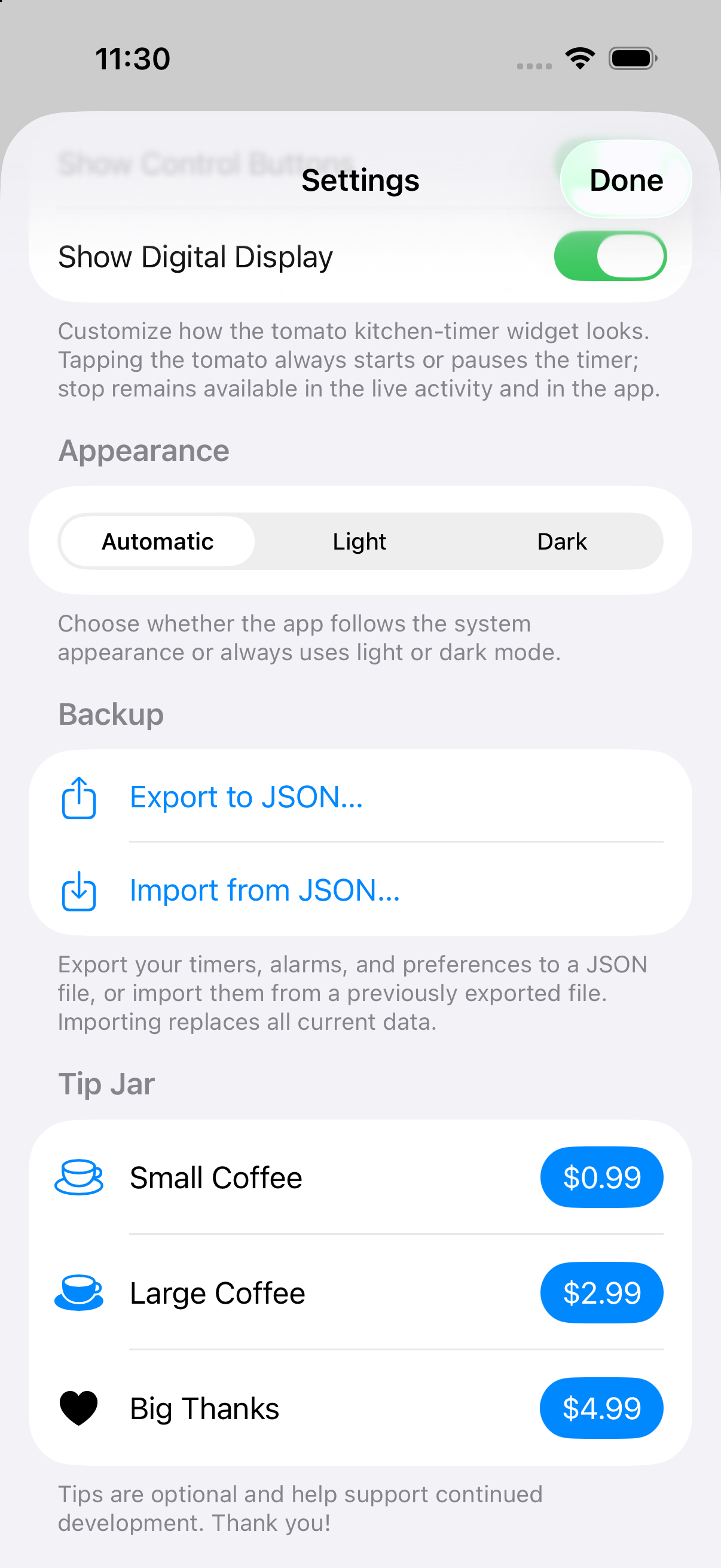
Your timers and alarms are yours. Whatever you have set up — a shelf of cooking timers, a week of alarms, a HIIT block tuned just right — Timers & Alarms can save all of it to a single file you keep, and bring it back any time. Here is how backup and restore work, what is in the file, and how the same file moves your setup to another iPhone.
One file holds your whole setup
Open Settings and tap Export. The app writes your timers, alarms, and preferences to a single file which you can save in a place that fits best for you. That file is your backup — keep it wherever you keep things you do not want to lose. The name is date-stamped, like TimerAlarm-Backup-2026-06-15, so several backups stay easy to tell apart.
What is inside:
- Your timers — names, durations, phases, rounds, colors, and per-timer sounds.
- Your alarms — times, weekdays, and sounds.
- Your preferences — the defaults and feature toggles from Settings.
Restore in one step
On any device with the app installed, open Settings, tap Import, and pick the file. The app reads it back and your setup returns just as it was. Importing replaces the timers, alarms, and settings currently on that device with the ones in the file, so you end up with a faithful copy — handy after reinstalling the app or setting up a phone from scratch. There is a step-by-step on the help page.
It’s plain JSON — readable, and yours to keep
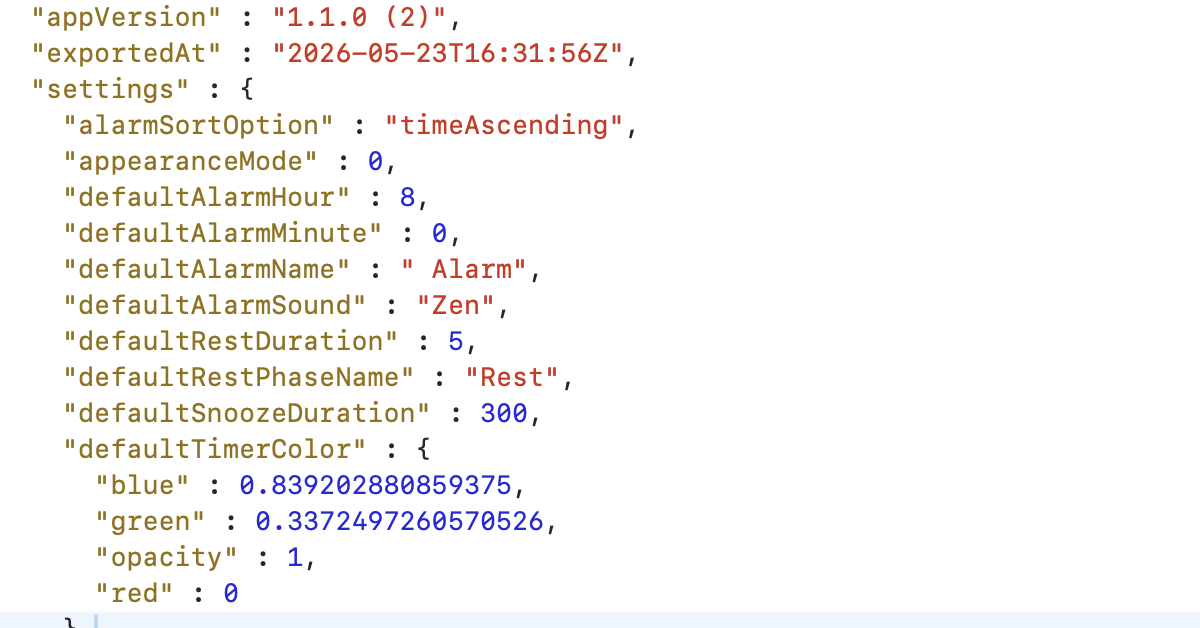
The file is plain JSON: human-readable text, neatly formatted, with sorted keys and standard ISO 8601 dates. Open it in any text editor and you can read exactly what it holds — a version stamp, the date it was exported, your settings, and the full list of your timers and alarms. Because the format is open, a script can read it too.
That matters if your needs change. If you ever build up a large library of timers and alarms and decide to move to a different app, your data is in a form you can convert — not locked inside a database only this app can open. Timers & Alarms is free, shows no ads, and tracks nothing, and we do not think keeping your own data hostage is a fair way to keep you around. The export is there so your setup belongs to you, wherever you choose to use it.
Use it across your devices
The same file is the simplest way to put your setup on more than one device. New iPhone? Export from the old one, import on the new one, and you are set up in two steps. Keep a private phone and a work phone? Build your timers and alarms once, export, and import on the second so both match. Whenever you want them to line up again after a change, export and import again.
Everything stays on your device and nothing is synced through a server in the background, so you decide when two devices match — by sending the file across yourself.
What stays on each device
A few things are deliberately left out of the file, because they describe one device rather than your setup, e.g. which tab you had open or whether you have seen the onboarding. So a restore brings your timers, alarms, and preferences — never one phone’s local state onto another.
A note on tips
If you have left a tip, that is a purchase tied to your Apple ID, not part of the backup file. It carries across your devices the way App Store purchases always do — sign in with the same Apple ID and it is recognized.
Get it
Timers & Alarms is free on the App Store, with no ads and no tracking. Tap the badge below to install it.