Why I built PhotoView
My journey to the app
My first “serious” camera, an SLR, was still an analog film camera that I bought in the late 1980s. My first digital camera was an Olympus C-200Z in 2002. Although the quality of the photos from my analog SLR was better than that of the digital camera, I was immediately a fan of digital photography. The photos went from the camera to the computer, where they were always readily available, and searching for a specific photo no longer meant flipping through analog photo albums. A few search terms, and (assuming consistent use of keywords) I had exactly what I was looking for, right at my fingertips.
In 2006, I took part in the beta test for Adobe Lightroom and have stuck with it ever since. I’m aware that there are now several alternatives, but for a (RAW) photo editor, Lightroom (in the “Classic” version) easily meets my needs as a hobby photographer. What’s changed over the past few years: I no longer keep my photos exclusively in Lightroom; I’ve also stored my entire collection in the photo library on my iPhone, iPad, and MacBook. This means that no matter when or where I am, my photos are always available as long as I have one of my devices with me, which is almost always the case with my iPhone.
Thanks to the improvements in iPhone camera quality and the ability to shoot photos in RAW format, my iPhone has become my go-to camera. My DSLR, a Nikon D750 for several years now, rests in my camera backpack along with several lenses, and I bring it along whenever I spot an opportunity for special photos. That could be a trip to the mountains or the sea, a visit to the zoo, or a garden show. But I don’t carry several kilograms of gear nearly as often as I did five years ago.
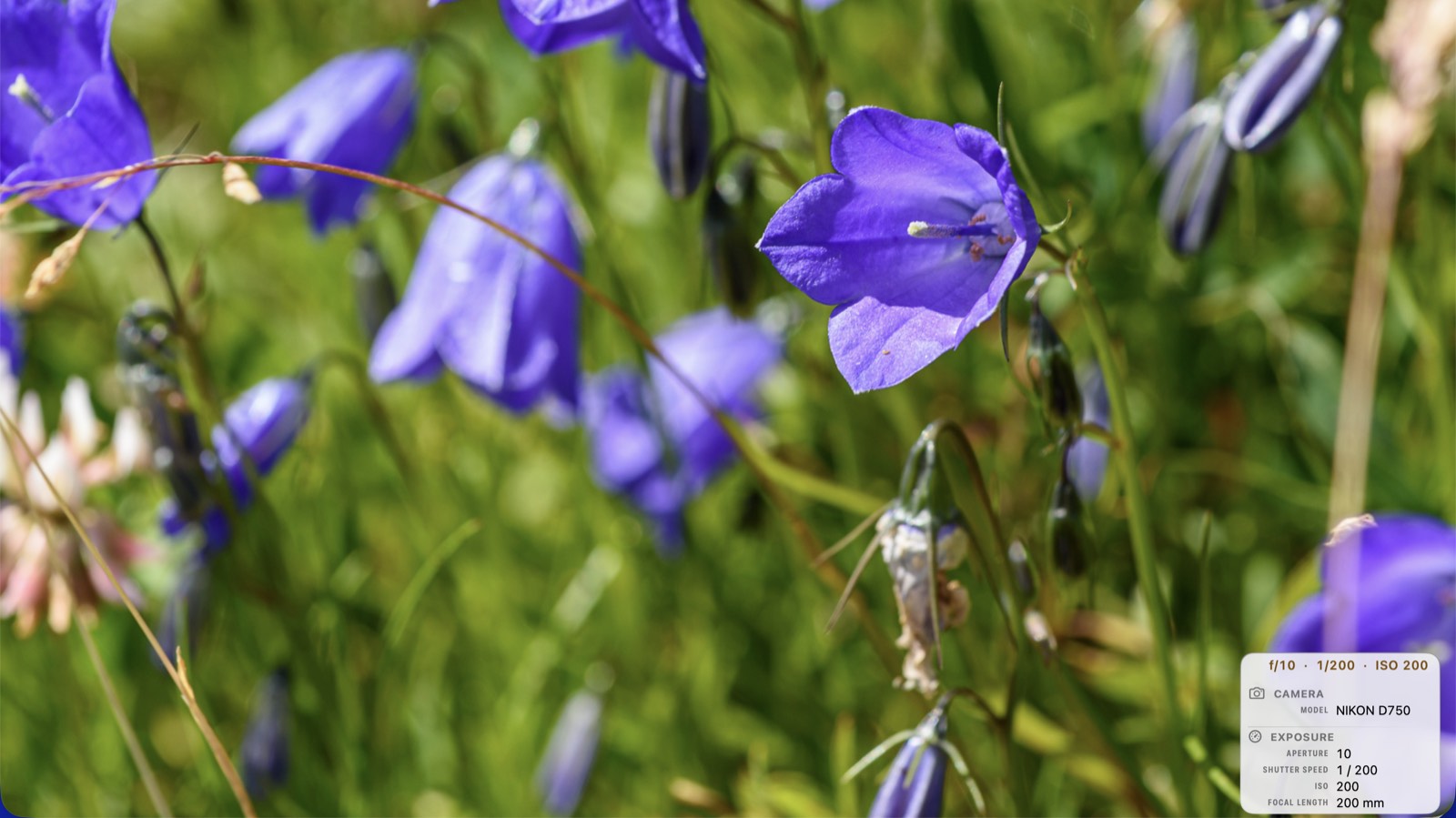
That was quite a long introduction, but now let’s get to the question at the top of this post: Why did I develop PhotoView? The answer is pretty simple. When I look at a photo, I often want to check how or where I took it. In Lightroom, all this data is available, but when I’m in the photo library on my iPhone or iPad, it’s a different story. The information available there either doesn’t include all the data I’m interested in, or if it does, the focus is on the data and the photo takes a back seat. I wanted an app that shows my photo in full screen and lists the metadata I care about right now in one corner. I also wanted to be able to move the overlay from one corner to another so that no relevant parts of the photo are obscured. That was, and still is, the basic idea behind PhotoView.
I’d been playing with the idea of developing my own app for a long time, it became reality in June 2025 (that’s when the first commit for the app was made in the Git repository). I handle everything on my own, from the initial idea through design and development to testing, so it took a good year just to get the basic functionality ready for the public beta. The app has been available for everyone to test since mid-July and is about to be released on the App Store.
Below, I go into a few of these aspects in more detail.
The basic idea
As mentioned above, the basic idea is quite simple. When I look at a photo, I can tap once to display the associated data; with a second tap, the photo takes center stage again. The photo remains in full-screen view the entire time. Nothing pops in from the side to push the photo aside or shrink it. The data in the overlay updates along with the photo: when I go to the next or previous photo, the data for that photo (or video) is displayed.
It works exactly the same way on a Mac, except that I bring up the data there with a click or by pressing ⌘I. On a Mac, I can also choose whether the data is displayed in an overlay on top of the photo or in a separate window. Some more details are given in One tap to see how a photo was made.
What data: a long journey
At first, I wanted the app to show the metadata that interested me most (keywords, location data, titles, and other fields with manually created descriptions), as well as the standard capture data, primarily the EXIF data. Gradually, however, I added (almost) all the information that Apple makes available in the photo library. There are two exceptions. First, there is data that exists but for which there is no documented interpretation. That’s why PhotoView can only parse “Maker notes” from Apple, Canon, and Nikon. Second, there is data that doesn’t provide meaningful information to human users within the app, such as color and camera calibration matrices.
It wasn’t until much later that I discovered that XMP packets are available via Apple APIs in the photo library on the iPhone and iPad if the photo editor has written them to the image file. At first, I assumed that XMP data was only readable on a Mac. You can find more on this in the post Sidecars and RAW: the .xmp next to your file.
Currently, PhotoView recognizes over 200 data fields, which the app organizes into 18 groups (Description, Date & time, Location, Camera, Lens, Exposure, Image, File, Video, IPTC, DNG, XMP, IPTC Extension, Finder, Apple, Canon, Nikon, Apple features).
If all of them were displayed, it might take a long time to find the three fields you’re currently interested in. That’s why, first, the overlay only displays fields that actually contain data, and second, you can choose which fields you want to see, and only those will appear. You can also choose between three sizes for the overlay and specify which of the four corners it appears in.
Photo data is only read, not modified
PhotoView reads your photos’ metadata to display it. The data is neither modified nor uploaded anywhere. In addition to the data already contained in the image or video file, such as EXIF, IPTC, TIFF, and GPS information, the app also reads the data provided by Apple’s PhotoKit, any XMP sidecars that may be present on your Mac, and the data from the Finder related to the media files.
There are no accounts for the app; you don’t have to register or log in anywhere, and there are no servers running in the background (except for the servers operated by Apple for iCloud, where you may have stored your photos). There is no tracking, no analytics, and no ads. The only thing that leaves your device is your settings, which are stored in your private iCloud, but only if “Sync settings” is turned on under Settings ▸ General ▸ iCloud.
Since I personally prefer apps that don’t display ads and don’t force me to create an account with the provider first, I made a conscious decision right from the start to avoid ads, tracking, and the use of servers.
Mac support from the start
The app has been available on iPhone, iPad, and Mac from the very beginning. The Pro features are available as a one-time purchase, i.e. you pay just once and afterwards you have access to everything on all your devices.
On the Mac, just like on the iPhone and iPad, you can open photos from your photo library, but you also have the option to read image files directly from the file system. This allows you to view data in the Finder group (Finder tags, Finder comment, etc.) as well as read XMP sidecars. This means, if your photo editor has stored data in an XMP file, this data is available to you in PhotoView on your Mac, for example keywords along with the keyword tree, ratings, and color labels.
You can find more information about XMP and XMP sidecars here: PhotoView reads the XMP your editor wrote and Sidecars and RAW: the .xmp next to your file.
AirPlay: view photos together with family and friends
When you mirror your iPhone or iPad screen to your TV via AirPlay, you can view your photos on the big screen. Only the photo appears on the TV, without the toolbar, controls, or metadata. Control remains on your device. This is ideal for photos that don’t look their best on a small screen, but it is especially great for viewing them with family and friends without having to pass your iPhone around. That’s also why PhotoView includes a slideshow with customizable transitions, so you don’t have to swipe through the photos yourself.
While AirPlay and the slideshow weren’t the very first reasons I developed my own app, mirroring to the TV is one of the most important features for me.
One more note about the Mac: Screen mirroring via AirPlay is available in PhotoView on iPhone and iPad. On the Mac, the slideshow opens in its own window, which you can move to a second screen.
(If you’d like AirPlay support on the Mac as well, please send me a quick message via the contact page)
What I left out
From the very beginning, I have seen PhotoView as an app for viewing photos and their metadata. That’s why it does not have any editing features, and the app does not alter your photos or their metadata.
I also didn’t implement the ability to convert Live Photos into long-exposure photos because this requires combining all the individual frames.
Photos are stored in the photo library on your device or in iCloud. PhotoView is designed to display them, not to create another storage location. For this reason, there is also no “Recently Deleted” album. If you want to recover deleted photos, you can do so using the Photos app.
I have left out the points mentioned above as a matter of principle, but there are quite a few features which, for reasons of effort, I intend to implement only in later versions. Two examples: an adjustable, user-defined overlay size to overcome the restriction of “Small,” “Medium,” and “Large” only, and the ability to create metadata presets to quickly switch between displaying different sets of metadata.
The current status
The public beta has been running on iPhone, iPad, and Mac since July 14, 2026. I’ve incorporated the feedback and am currently preparing to release the app on the App Store.
PhotoView itself will be available for free. To use the Pro features, there will be a 7-day trial phase during which you can explore everything before deciding to purchase. The Pro trial will cost nothing, and there will be no automatic charges of any kind at the end of it. Once the trial expires, all Pro features will simply be locked again, and you can then continue using the free version or decide to make a purchase.
It will be a one-time purchase, meaning you pay once, and then the Pro features are yours to keep on all devices signed in to your Apple Account, including future updates to the app.
The free version includes all features for viewing your photos and displaying the Date & time, Camera, Lens, Exposure, Image, File, Video, Apple, and Apple features groups. The Pro version additionally displays the following groups: Location (including a map link and map view), Description, IPTC, IPTC Extension, DNG, XMP, Finder, as well as “Maker notes” from Canon and Nikon.
What’s next
I wanted an app that would display my photos in full-screen view and let me show or hide the associated metadata with a tap or click (without covering the entire photo).
That wish is about to come true. Depending on how long Apple’s review takes and any necessary revisions that may arise during that process, PhotoView will be available in the App Store for iPhone and iPad, as well as in the Mac App Store, in the coming days or weeks.
Updated on September 22, 2026: Apple has approved PhotoView, and the public beta has ended. From September 29, 2026, PhotoView is available on the App Store for iPhone and iPad and on the Mac App Store. Until then, you can pre-order it.