One tap to see how a photo was made
When a digital camera takes a photo, it saves not only the photo itself but also the shooting data inside the same file. This includes aperture, shutter speed and ISO, as well as information about the camera and lens (or the phone you used). Often, the location where the photo was taken is also stored in the form of GPS data. The list of available data depends on the camera you used and on whether the photo was later edited in a photo editor.
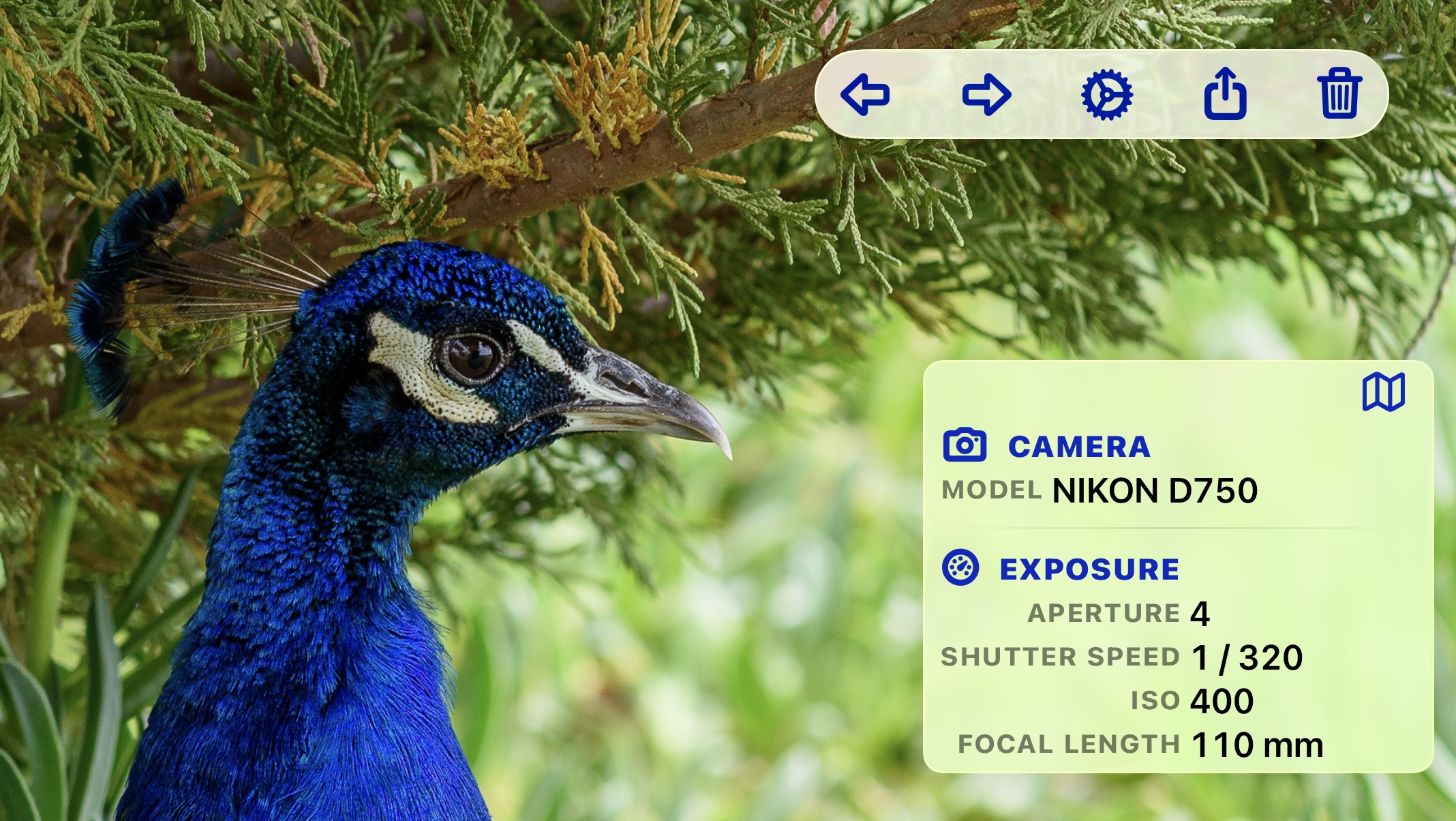
PhotoView is designed to display your photos and videos in full screen, while keeping the metadata mentioned above readily available in the background. Just one tap brings up the data. Tap again, and your photo is back in the spotlight.
For the sake of simplicity, I'll be using "photos" in the rest of this article, but most topics apply to videos as well.
Tap once to see it, tap again to hide it
Open a photo from the Library, and it will be displayed in full-screen mode. Tapping on it brings up an overlay showing the metadata. When the overlay is visible, the toolbar also appears at the top of the screen, where you can access the Share menu and Settings, among other options. Tap the photo again, and the overlay and toolbar will disappear, giving your photo the full spotlight once more. On a Mac, you can also display the metadata by pressing ⌘I.
When you swipe or, on a Mac, use the arrow keys to move to the next or previous photo while the overlay is displayed, the metadata for that photo is updated. This means you can simply browse through your library and view the metadata for all your photos.
A note about full-screen view: By default, the photo is scaled to fit the screen in full-screen view. This means, depending on the aspect ratios of the photo and your screen, you may see dark bars at the top and bottom or on the left and right. Double-tap the photo to switch between fit and fill. With fill, the photo fills the entire screen. However, since the photo's aspect ratio isn't changed to prevent distortion, part of the photo may extend beyond the edge of the screen and therefore no longer be visible.
In Settings, you can choose whether you want to switch between viewing the “Photo Only” and “Photo with Metadata + Toolbar” with a single tap, or whether you prefer a cycle of three views: “Photo Only” → “Photo with Toolbar” → “Photo with Toolbar and Metadata” → back to “Photo Only” (change the “Tap to cycle” setting to “Two taps” or “Three taps”).
What the overlay shows
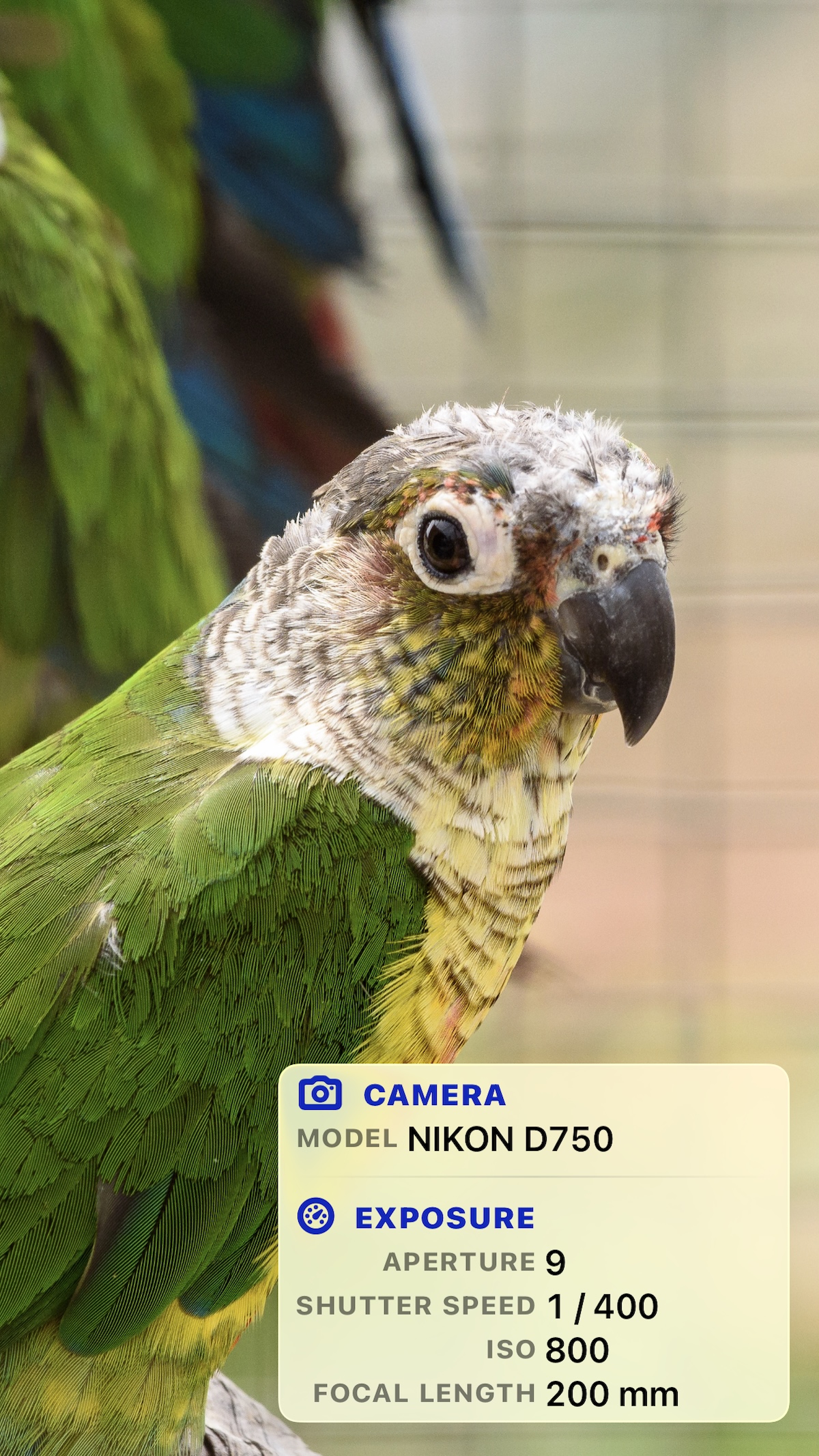
The metadata overlay shows what the camera and photo editor have written. The fields are grouped so they are easier to scan. They are sorted mainly by topic rather than by the name of the standard in which the data is defined.
The groups include the following:
- Description (title, keywords, rating, …)
- Date & time
- Location (with GPS data or a map link to where the photo was taken)
- Camera, Lens
- Exposure (aperture, shutter speed, ISO, focal length, exposure mode, etc.)
- IPTC, XMP, DNG and others
There are over 200 different data fields, but only those fields for which data is available are displayed.
Choose the fields that matter to you
If a list potentially contains more than 200 fields, the ones that matter to you might be at the very bottom or somewhere in the middle. That's why you can choose which fields you want to see and which you don't. For landscape photos, you might want to see only aperture, shutter speed, focal length and ISO. When you're deciding which photos to discard, the rating and color label are probably most important. Choose your fields in Settings, and you'll see only those fields for each photo until you change the list again.
Why it toggles
PhotoView is designed for viewing photos, so the photo fills the entire screen. The overlay holds the metadata, and you can show or hide it with a single tap. This way the metadata is always just a tap away, and the photo keeps the screen to itself the rest of the time. By default you see just the photo and can take it in at your own pace. The metadata joins it when you want the details.
How to try it
Updated on September 22, 2026: The public beta has ended. From September 28, 2026, PhotoView is available on the App Store for iPhone and iPad and on the Mac App Store. Until then, you can pre-order it.


Questions and feedback are always welcome. You will find my contact information on the Contact page, and a link there to PhotoView Help & User Guide.
← Back to the blog