What’s new in Timers & Alarms 1.5
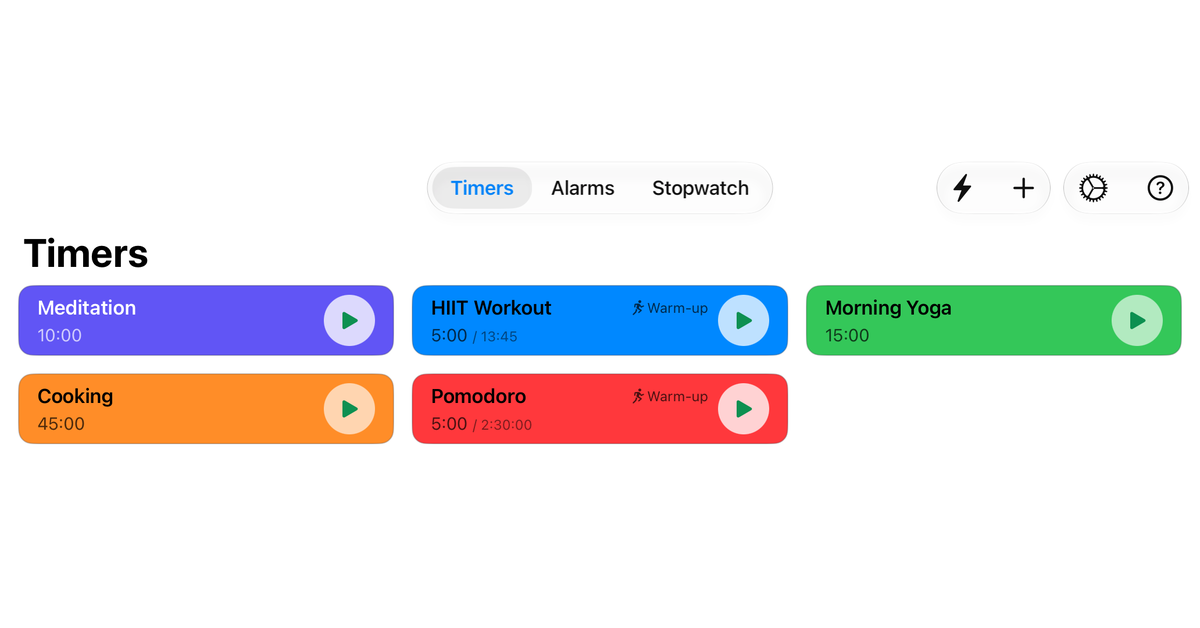
Timers & Alarms 1.5 is available on the App Store, as always free, with no ads and no tracking. The app now runs on iPad, and on the iPhone Duo it uses the large inner display. In the timer list, a new button opens a quick timer in a single tap. And with a hardware keyboard and iOS 27 or iPadOS 27, the most common actions now have a keyboard shortcut.
Now on iPad
Timers & Alarms now runs on iPad too, with layouts made for the larger display. Your timers and alarms sit in a grid of cards. In the Alarms tab, the list stays on one side, and the alarm you open appears on the other, outlined in the list. Help shows its topics next to the page you’re reading.
With iPadOS 27, the timer editor opens beside the timer. The timer shows your changes as you make them, so you can see the result before you save. Your changes are kept only when you tap the checkmark.
On iPad, the app is free too, and it needs iPadOS 26.2 or later. Nothing is synced in the background. To bring your timers and alarms over from your iPhone, export them there and import the file on your iPad.
Made for the iPhone Duo
On the iPhone Duo, Timers & Alarms uses both halves of the large inner display. A timer’s detail view splits at the fold: the countdown on one side, the buttons and an overview of the timer’s setup on the other. The stopwatch splits as well, with the time on one half and the lap list on the other.
With the fold running from top to bottom, the app uses the same wide layouts as on iPad: the grid of cards, with the fold between its two columns, the alarm list beside the open alarm, Help with its topics beside the page, and the timer editor beside the timer. Closed, the outer display shows the familiar iPhone layout.
A quick timer in one tap
In the timer list, a lightning bolt now sits beside +. Tap it, and a quick timer opens with 5 minutes already chosen. Tap the play button, and it runs. Or pick another duration first.
The menu under + now lists Quick Timer first, followed by New Timer and From Preset….
Keyboard shortcuts
With a hardware keyboard, on an iPad for example, these keys save you a tap. They work with iOS 27 and iPadOS 27:
- ⌘N: a new timer or alarm, depending on the tab you’re in
- ⇧⌘N: a new quick timer
- ⌘,: Settings
- Space: starts, pauses or resumes the open timer or the stopwatch
- ⌘S: saves in the timer and alarm editors
- ⌘↩: starts the quick timer
- ⌘.: cancels an editor and closes Settings or Help. If you have changed something, you are asked first.
Hold down ⌘ to see the shortcuts that work where you are. The help page lists them too.
Shortcuts and Spotlight
On iPad, your timers work in the Shortcuts app and in Spotlight, just as on iPhone. You can start a saved timer or a quick one, stop a timer, check how much time is left, move an interval timer on to its next round, or turn an alarm on or off, from Spotlight or as a step in your own shortcuts. You pick the timer from a list of your own. The actions came with version 1.4, and the help page describes each one.
If you don’t pick a timer, the Next Round action now takes the one that is ringing. It also works now while the app is in the background. Before, it could refuse a timer that was ringing.
Improvements
- On the Home Screen, the app is now called TimerAlarm. On the App Store, it is still Timers & Alarms.
- The weekdays of an alarm now start on the first day of the week for your region, for example Monday in Germany and Sunday in the US.
- The editors and similar views now show a checkmark to save and an ✕ to cancel instead of words.
- Help now covers the new layouts on iPad and iPhone Duo, and the keyboard shortcuts.
Fixed
- When you open a quick timer, its starting duration is now highlighted. Before, the duration was set, but no choice was marked.
- Cancelling a new timer or alarm you haven’t changed no longer asks about unsaved changes.
- In rare cases, the app or a widget could quit just as a timer’s countdown ended. That no longer happens.
Get the update
Tap the badge below, then open the page in the App Store app. If Timers & Alarms is already installed, the update arrives on its own. On iPad, the same page installs the app.