What’s new in Timers & Alarms 1.3
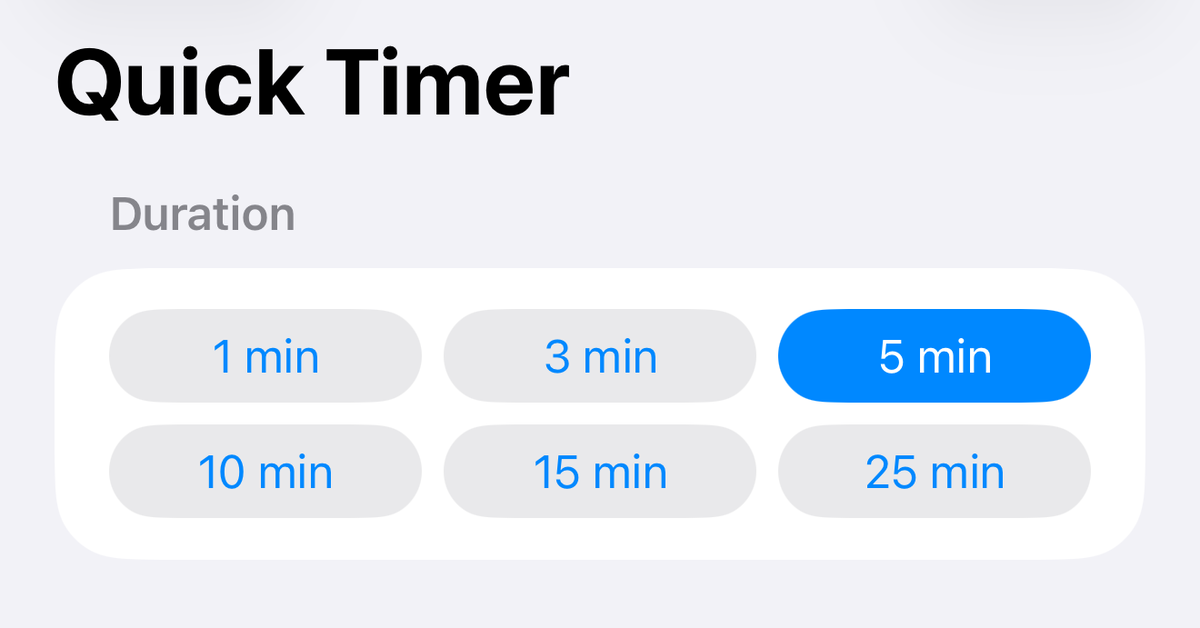
Timers & Alarms 1.3 is available on the App Store — as always free, with no ads and no tracking. There are two new ways to get to a countdown: quick timers, in case you need a plain timer that should start right away, and a gallery of ten ready-made presets, for things like stretching routines or Pomodoro sessions.
Quick timers: two taps and it runs
Tap + at the top right of the timer list, then Quick Timer. Pick a duration — 1, 3, 5, 10, 15 and 25 minutes are there to choose from, and you can set any other time on the wheel — then tap Start. The countdown begins right away.
There is no name to think up: a quick timer is called after its duration, e.g. “5 min”, and it needs nothing more. It also clears up after itself. Once you are done with it — whether you confirm its alarm or stop it early — it deletes itself from the list. You can have up to three quick timers at a time.
Because there is nothing to set on a quick timer beyond its duration, you choose the color and sound for them once in Settings. They apply to every quick timer you add from then on.
If you would rather have your timer list split into sections, turn on Group Timers. Active timers — running and paused — come first, and the inactive ones follow in a second group below. There is more detail on the help page.
Ten ready-made presets
In the same add-timer menu, From Preset… opens a gallery of ten ready-made timers:
- Pomodoro and Pomodoro 50 / 10 — for working in focus blocks with set breaks
- HIIT and Tabata — short, intense intervals
- Stretching — ten exercises of 30 seconds each
- Meditation, Power Nap and Box Breathing — for winding down
- Green Tea and Boiled Egg — for the kitchen
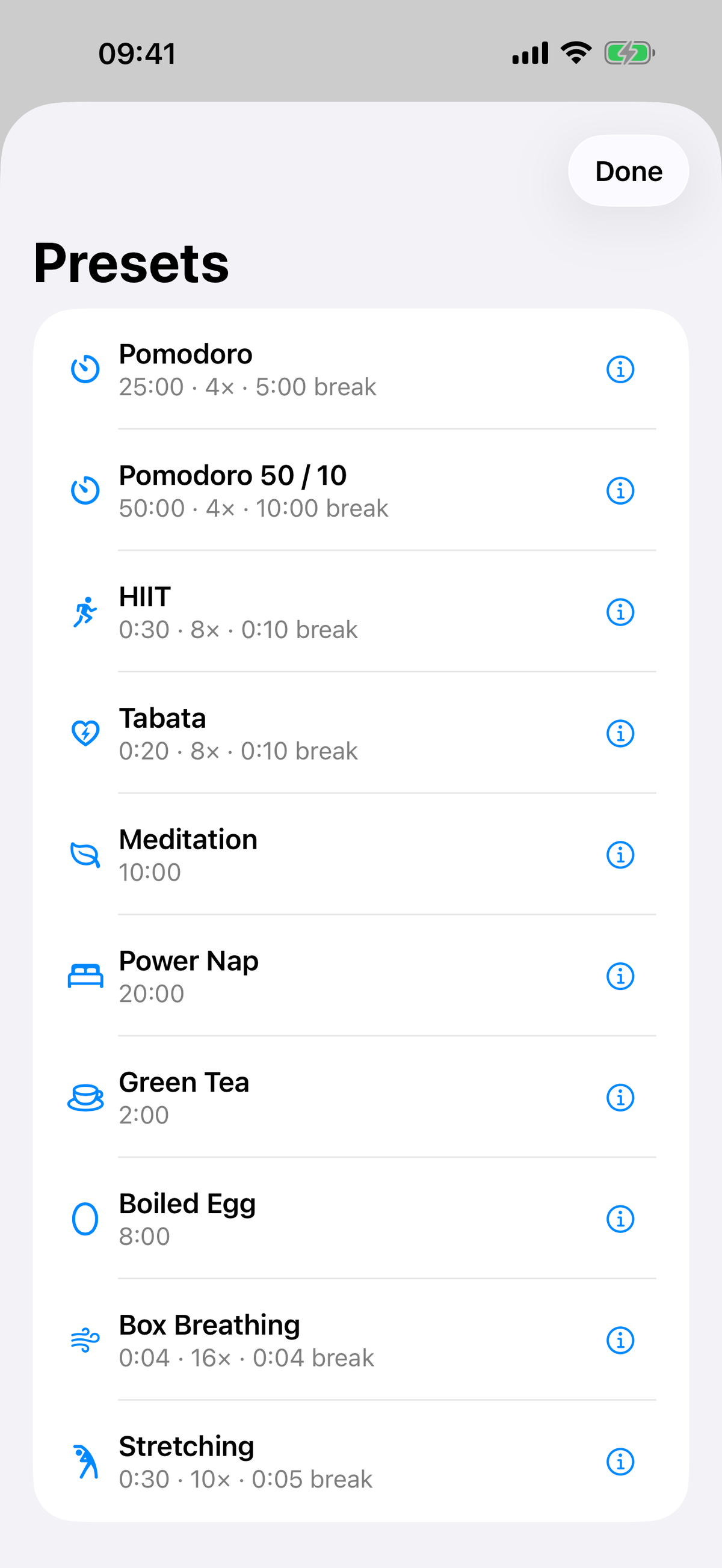
The info button explains beforehand what a preset is for and how it is put together. Choose one and the app puts a copy in your timer list and opens it right away so you can adjust it — the duration, color, sound and rounds are all still yours to decide. If a preset uses a feature you have not switched on in Settings, the app asks whether to turn it on.
If you have been setting up Pomodoro or HIIT by hand until now: the posts on Pomodoro and on HIIT and workout intervals still explain what sits behind the numbers — the preset only saves you the typing.
The Quick Timer widget
The new widget comes in small and medium. When you have no quick timer, it works as a button — one tap and the app opens straight at the duration picker. When you have quick timers running or paused, the widget shows them with their controls: the medium size puts them side by side, the small one shows the timer that ends next with its controls and the others as a line each below it.
Smoother to use
The interface has had some work too. The remaining time is more nicely animated, and controls answer with haptic feedback. Every animation respects the Reduce Motion system setting. Scrolling also stays smooth while several timers are running, and large text sizes fit the layout cleanly in more places.
Fixed
- Changing an alarm’s time switches it back on, instead of leaving it silently disabled.
- Snoozing or dismissing from the Dynamic Island updates the status in the app right away.
Also new since 1.1
Version 1.2 sits between the last post about 1.1 and today. It added French and Spanish, so the app is now available in four languages. When a repeating alarm has its next occurrence skipped, the alarm list says so right in that alarm’s row. And you now get asked before leaving a timer or alarm with unsaved changes.
Get the update
Tap the badge below, then open the page in the App Store app. If Timers & Alarms is already installed, the update arrives on its own.