What’s new in PhotoView 1.0.2
PhotoView 1.0.2 is now available on the App Store for iPhone and iPad and on the Mac App Store, as always with no ads and no tracking. Metadata presets switch the whole overlay in one step, Help can now be searched, and PhotoView is made for iPhone Duo, open or closed. Raw files converted to DNG in Lightroom now show their maker notes, and on iPhone and iPad you can arrange the viewer’s toolbar. Plus a good number of improvements and fixes.
Metadata presets: the whole overlay in one step
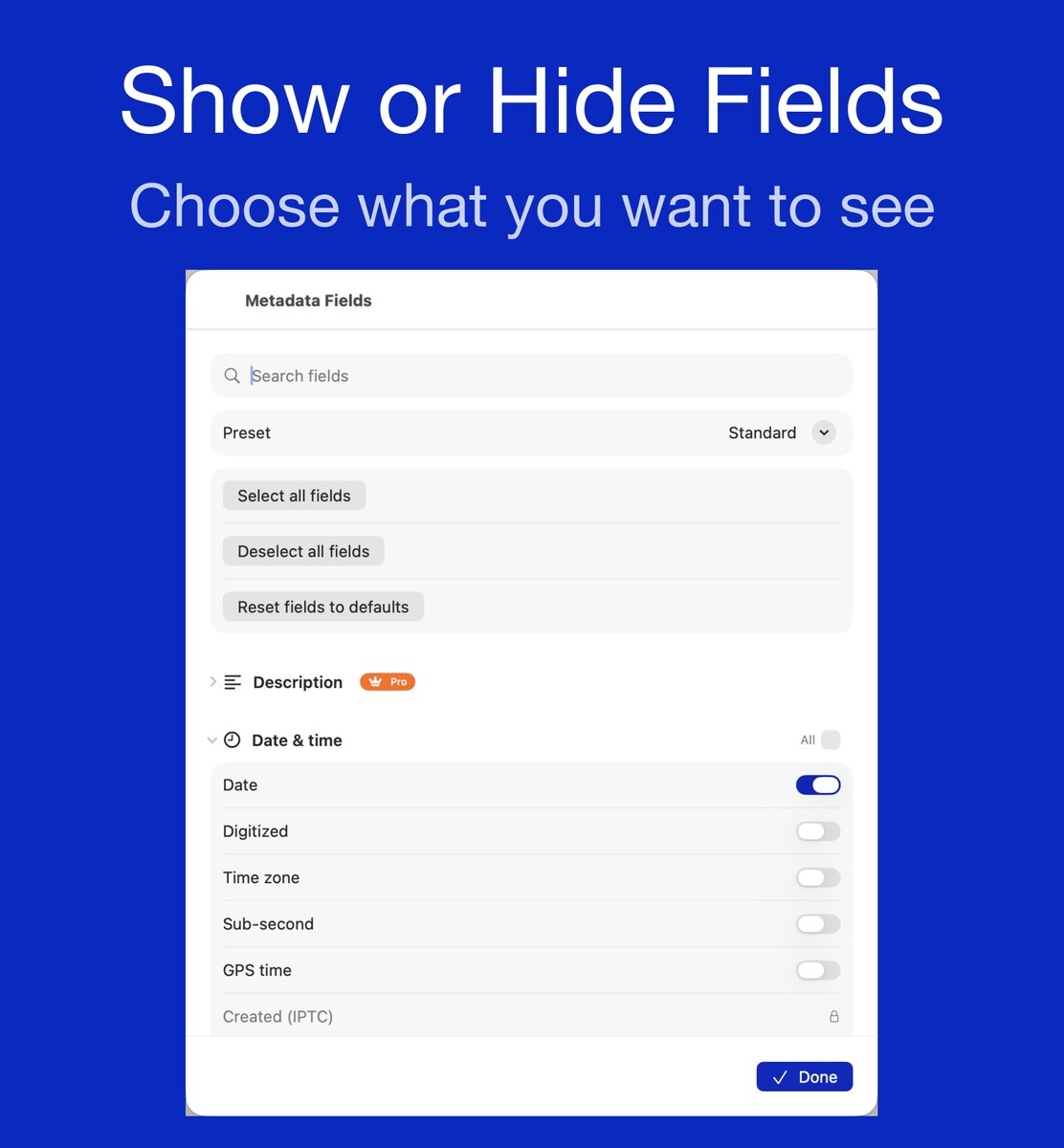
Which fields you want to see depends on what you’re doing. Going through a day’s shots, you may want aperture, shutter speed and ISO. Showing holiday photos to your family, the date and the place are enough. A metadata preset keeps one such choice of fields, so you switch the whole overlay at once instead of turning fields on and off one at a time.
Two presets come with PhotoView: Standard, the fields it starts with, and All fields, every field a photo can have. With PhotoView Pro you can save as many of your own as you like: switch on the fields you want in Metadata Fields and choose “Save as new preset…”. Settings ▸ Metadata ▸ Manage presets lists them all, and there you rename, duplicate, delete or reorder them. Your presets come along in a backup, and with “Sync settings” on, they reach your other devices through iCloud.
Switching between them is quick wherever you are:
- In the viewer, the Metadata preset button in the toolbar chooses a preset, and brings the overlay up if it was hidden.
- With a keyboard, ⌥⌘1 to ⌥⌘9 choose the first nine presets, and ⌥⌘I steps to the next one.
- On the Mac, they are also under View ▸ Metadata Presets, in the overlay’s right-click menu and in the metadata window.
Your own presets come with PhotoView Pro, and you can try them with your own photos in the free 7-day Pro trial (see “Try before you buy, buy once, yours forever”). The help explains presets in detail.
Search Help
Help now has a search field. Type a word, and Help lists every topic that mentions it, best match first, with a few words around each match. Open a topic, and it starts at the passage that matched, with your words highlighted. Help also finds other forms of a word and related words: “picture” finds “photo”, and “TV” finds “AirPlay”. For a typo, it asks “Did you mean …?”. On the Mac, press ⌘F in the Help window.
The search covers all of Help, including the metadata reference with its more than 200 fields.
Made for iPhone Duo
Closed, PhotoView works on the outer display as on any iPhone. Open, it uses the inner display and keeps what it shows clear of the fold. The library and album grids lie as two pages, so the fold runs between photos rather than through one. The metadata overlay stays on its own side, in the corner you chose, and the controls go to the side where they are used. Held upright, the welcome tour and Settings open like a book.
Folding and unfolding keeps your place: the photo you were looking at, a running slideshow, a video that goes on from where it was, or your page of the tour. The help has the details.
Arrange the viewer’s toolbar
On iPhone and iPad, Settings ▸ General ▸ Viewer toolbar now arranges the buttons over an open photo. Put Favorite, Metadata preset, Share and Delete in the order you like, keep any of them in the … menu, or hide it. Settings and Help sit in the … menu as well. So the bar keeps what you use most right at hand, and the entries you need less often are in the … menu.
Maker notes from DNGs converted in Lightroom
When Lightroom converts a raw file from a Nikon or Canon camera to DNG, it keeps the camera’s maker notes inside the DNG. PhotoView now reads them there. For a Nikon, that includes the focus mode, the lens info and the shutter count; for a Canon, the image serial, the firmware and the continuous drive setting. Every DNG now also shows its camera profile and raw data ID. The maker notes and the DNG group come with PhotoView Pro.
Improvements
- At the largest text sizes, album titles no longer break mid-word, the Pro offer stays in view, and the support address and the overlay’s heading keep to their lines.
- On iPhone and iPad, the slideshow settings show every row again, “Show metadata” included. On every device, slideshow durations follow the app’s language.
- The Pro buttons and badge are easier to read.
- Live Photos set to Loop or Bounce prepare their clip only when you look at them, so moving through them is lighter.
- On the Mac, Open Recent lists only files PhotoView can show, and tells two files of the same name apart by their folders.
Fixed
- Once you own Pro, the free trial’s “ends tomorrow” reminder no longer appears.
- A slideshow no longer stops at a video that can’t be played, such as one offline in iCloud, and videos in a slideshow play to their end.
- Over AirPlay from iPhone and iPad, Rewind works every time, and Shuffle moves the same way on the TV as on your device.
- Photos with impossible GPS coordinates no longer break the map, and blank values no longer appear as empty rows.
- Shutter speeds such as 0.8 s, lens specifications and XMP dates now read correctly.
- When iCloud settings sync asks which settings to keep, your answer now applies to every field, and nothing changes while the question is open.
Fixed on the Mac
- Space opens Quick Look for the photo you are viewing, and ⌘A and Space act only in the window you type them in.
- A dropped file you rename, move or move to the Trash in the Finder can be removed from Files. Folders and files PhotoView can’t show no longer appear as empty tiles, and opening a folder in one window no longer cuts another window off from its folder.
- Dragging a photo out of a second window now works, and a second slideshow starts while the first one’s window is still open.
- A backup made on iPhone or iPad no longer turns off the Finder fields.
Get the update
Tap or click one of the badges below. If PhotoView is already installed and automatic updates are on, the update arrives on its own. Otherwise, the badge takes you to PhotoView’s page, where you can start it yourself.


If something in 1.0.2 doesn’t work the way you expect, “Send feedback” in Settings ▸ Support is the quickest way to tell me.
← Back to the blog