The stopwatch: laps, the Lock Screen and Apple Watch
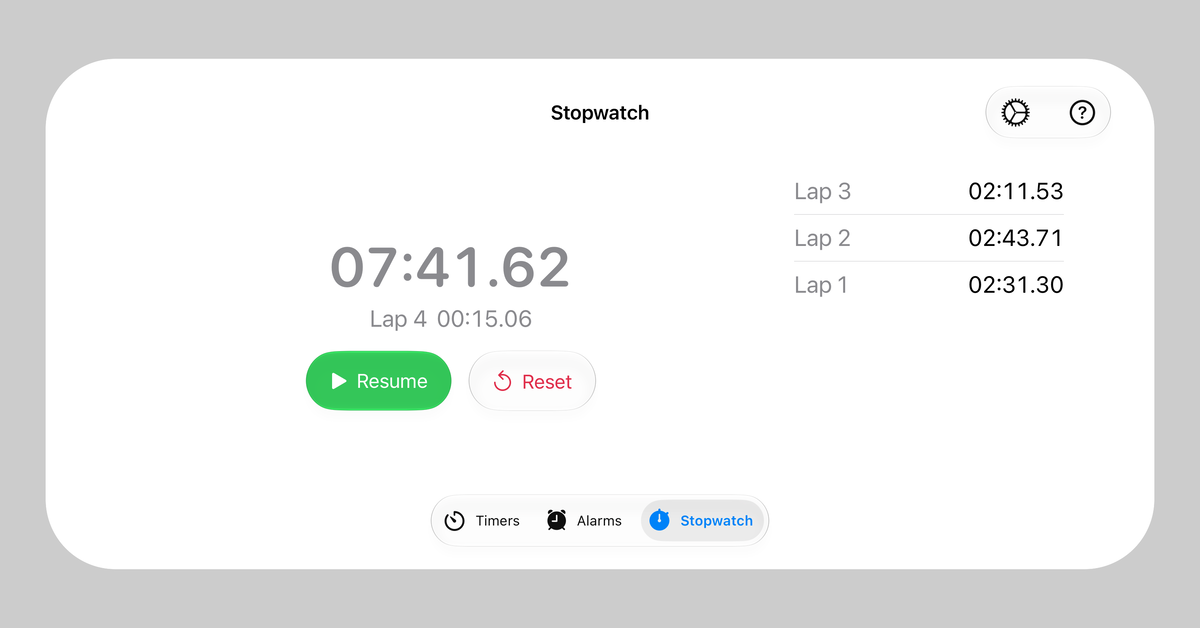
A stopwatch has many uses: it shows you how long a lap around the block takes, how long your talk really runs or how long your tea needs to steep until it tastes just right. That’s what the third tab in Timers & Alarms is for, beside “Timers” and “Alarms”: the stopwatch. It measures to the hundredth of a second, splits a run into laps when you need them, and you can also control it from the Lock Screen and from your Apple Watch. Here is how it all works.
Two buttons for everything
The stopwatch gets by with two buttons. The first one starts it, pauses it and resumes it.
The second button changes its job. While the stopwatch is running, this button records a lap time. When you pause the stopwatch, the button turns into “Reset”. You never need both at once, so the two share one spot.
“Reset” sets the time back to zero and clears all laps, without asking first. There is only one stopwatch, and it doesn’t keep earlier runs. If you need the times later, take a screenshot first.
With a hardware keyboard and iOS 27 or iPadOS 27, the space bar takes over the first button: it starts, pauses or resumes the stopwatch.
Laps
During a run, tap “Lap”, the button with the flag. The stopwatch then adds the lap and its time to the list below, with the newest lap at the top. From the first lap on, a line under the large time shows the lap in progress, such as “Lap 4 00:15.06”.
- Each row shows how long that one lap took, not the time since the start. That way, you can see at a glance which lap was faster.
- The numbers count from the first lap, however far down the list it has moved.
- If you pause in between, the pause doesn’t count. A lap measures only the time the stopwatch was running.
On a wide screen, in landscape, on iPad or on the iPhone Duo’s inner display, the time is shown larger, and the lap list appears beside it instead of below it.
It keeps running, even without the app
A running stopwatch keeps running when you switch tabs, leave the app or even restart your iPhone. When you come back, it shows the whole time that has passed. This saves battery: the stopwatch remembers when it was started and works out the elapsed time from that, instead of counting along in the background.
On the Lock Screen and in the Dynamic Island
As soon as the stopwatch is running, it appears as a Live Activity on your iPhone’s Lock Screen. The card shows the total time, the current lap with its number and the same two buttons as the app: Pause and Lap. You don’t need to unlock your iPhone for that.
On iPhone models with the Dynamic Island, the stopwatch shows its symbol and the total time there while you’re in another app. Touch and hold the Dynamic Island, and it expands to show the current lap and both buttons as well.
Good to know:
- On the Lock Screen, the stopwatch counts in whole seconds, and in the app in hundredths of a second. Laps you take on the Lock Screen are still saved to the hundredth.
- A paused stopwatch keeps its card on the Lock Screen too, so you can resume it without opening the app. The card only goes away after “Reset”.
The post on Live Activities and the Dynamic Island describes what a timer’s Live Activity looks like.
On your wrist: Apple Watch
If you wear an Apple Watch, the same card appears in its Smart Stack. You don’t need a separate watch app for that. The card shows the total time, the current lap and the two buttons to control the stopwatch. You can tell that your tap on “Lap” arrived when the lap number goes up by one.
The stopwatch itself runs on your iPhone. Your Apple Watch shows it and passes your commands on. So when you’re out of range of your iPhone, the card keeps showing the right time, but its buttons don’t work. Laps and pauses you tap then are not recorded, and they aren’t added later either. If you want to take laps on the go, bring your iPhone along.
Start without opening the app
There’s no card until the stopwatch is running, so before that there’s nothing to tap. To start the stopwatch without opening the app, there’s the Stopwatch control:
- On iPhone, add it to Control Center, to the bottom of the Lock Screen in place of the flashlight or camera, or to the Action button if your iPhone has one. In the controls gallery, you’ll find it under TimerAlarm, the app’s name on the Home Screen.
- On Apple Watch, add it to Control Center or the Smart Stack.
One tap starts the stopwatch without opening the app. If the stopwatch is paused, the same tap resumes it. If you start it from your Apple Watch, it can take a few seconds for the card to appear. The stopwatch is already running from your tap, though, and the card shows the right time straight away.
The help page has all the details on the stopwatch.
Get the app
Timers & Alarms is free on the App Store, with no ads and no tracking, for iPhone and iPad. Tap the badge below to install it.
