On the way to the App Store
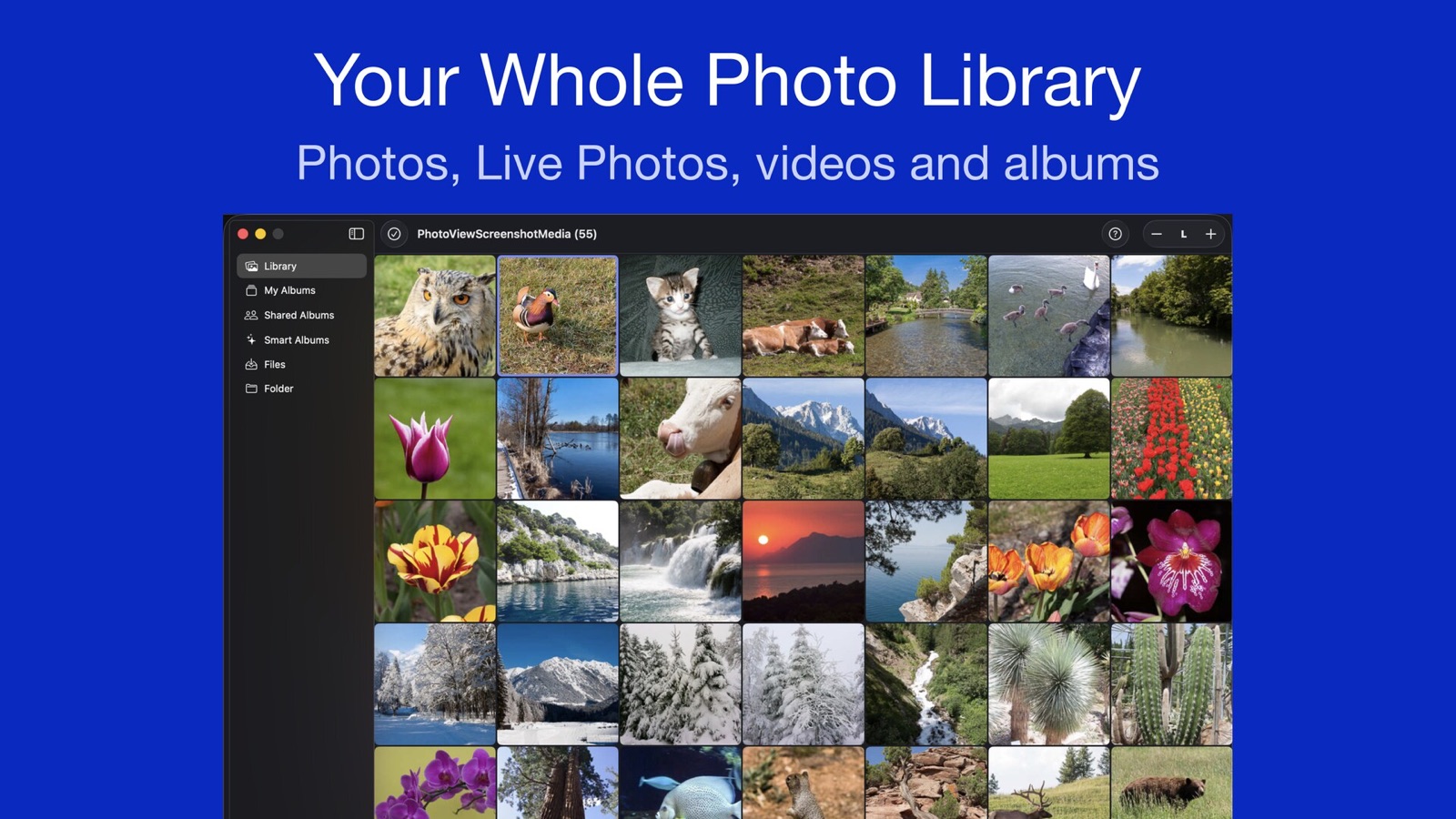
On July 14, 2026, I launched the public beta of PhotoView. Two months have passed since then, and I have implemented several builds along the way. The version for the App Store is now finished and with Apple for review. Below you’ll find what has changed since the beta started. This post is for everyone trying PhotoView through TestFlight, and for everyone waiting for the official release.
Where PhotoView stands
Updated on September 22, 2026: Apple has approved PhotoView for iPhone, iPad and Mac. From September 28, 2026, it is available on the App Store and on the Mac App Store. Until then, you can pre-order it. The public beta has ended.
The app is currently in App Review at Apple, so I can’t give a release date yet. The review may end with questions I need to answer first, or I may still have to make changes to the app before it is accepted. I don’t want to promise anything here that isn’t in my own hands. As soon as PhotoView is available on the App Store for iPhone and iPad and on the Mac App Store, you’ll find out here on my website.
What’s new
Alongside the feedback from the beta, using the app every day showed me a few things that were still missing. This is new in the submitted version:
- Favorites. You can now mark a photo as a favorite. That works in the full-screen view, from the context menu in the thumbnail grid, or for several items at once in a selection. The thumbnail then shows a small heart. It is the same favorite as in the Photos app, so you’ll see the heart there too.
- Thumbnail size. You can set the size of the thumbnails in the grid right in the toolbar. There are five steps, from XS to XL. The size is saved per device, because what fits on a Mac is different from what fits on an iPhone or iPad.
- Sidebar on iPad. On iPad, your albums now sit in a sidebar, just like on the Mac. As soon as you open a photo, the sidebar hides to give the photo the room it deserves.
- Welcome tour. On first launch, PhotoView shows a short welcome tour, before the app asks for access to your photo library. That way you know what the app needs your photos for before you are asked. The first time you open a photo, a small hint explains what a tap does. You can watch the tour again at any time: go to Settings ▸ General ▸ Show welcome again.
- Aperture, shutter speed and ISO at a glance. If there is enough room, the top line of the overlay shows these three values, so you can read them at a glance.
- Minimal width. If a photo has only a few short values, the overlay doesn’t need its full width. With the new “Minimal width” setting in Settings ▸ Metadata ▸ Overlay, it is only as wide as its content.
- Map styles. In the map view, you can now choose between Standard, Satellite and Hybrid. The map remembers your choice.
- Time left in a slideshow. A ring around the pause button shows how long the current slide stays on screen. For a video, the ring runs along with the video.
What got better
- Settings in three panes. Settings used to be one long list. Now it is split into General, Metadata and Slideshow: as tabs on the Mac, as a segmented control on iPad, and as separate pages on iPhone. Each explanation sits right next to the setting it describes.
- Photos appear right away. An opened photo is there immediately. If it still needs to load, it shows at a low resolution first and turns sharp a moment later. The loading spinner is gone, including when you swipe to the next photo.
- Zoom with limits. A zoomed photo can no longer be pushed off the screen. At the edge it resists a little, so to speak, and springs back when you let go.
- An overlay that shows there is more. When the overlay holds more fields than fit, a scroll bar and a softly faded edge now make that clear.
- Nikon files. An important one for me and my Nikon D750: the ISO value was missing from the overlay entirely, and the shooting mode only read “0”. Both now show correctly, the shooting mode for example as “Single frame”.
- Videos. At the end of a video, the play button starts it again from the beginning, and the overlay no longer goes blank while a video loads.
- Accessibility. Large text sizes, VoiceOver and Reduce Motion are taken into account in many more places. With VoiceOver, you can now also reach the overlay in the full-screen view.
- No access to your photos? If you had denied PhotoView access to your photo library, all you saw was a loading spinner that never stopped. Now the app tells you what is going on, and one button takes you straight to the right setting.
On the Mac
- A single “Open…” command (⌘O) for files and folders, plus “Open Recent” for what you opened last.
- ⌘0 now really shows a photo at actual size, and ⌘9 fits it back into the window.
- The window title shows the photo’s name, with its position in the album, for example “125 of 140”.
- Settings remembers the pane you last had open.
For everyone using the beta
When PhotoView comes out on the App Store on September 28, 2026, you can switch from the beta to the App Store version. There are a few things you should know:
- Pro. Purchases in TestFlight are test purchases and cost nothing. That is why they don’t carry over to the App Store version, where Pro is locked again at first. You can then start the free 7-day Pro trial or unlock Pro with a one-time purchase. I described how the trial and the purchase work in “Why I built PhotoView”.
- Pro trial. The Pro trial is synced through your iCloud. If you already started it in the beta, it won’t start over in the App Store version.
- Settings. The App Store version replaces the beta on your device. It’s best to back up your settings first, in Settings ▸ General ▸ Backup & Restore.
- How long a build lasts. The public beta has ended. A beta build you already have installed still works until 90 days after I uploaded it.
- Feedback. Now that the beta has ended, you can reach me through the contact page or in the app under Help ▸ Contact.
What’s next
The review is done, and the public beta has ended. PhotoView comes out on the App Store and the Mac App Store on September 28, 2026. Until then, you can pre-order it.


On release day, you’ll find the announcement with the App Store link here on my website. And to everyone who has tested, reported bugs, or simply followed along over the past two months: thank you!
← Back to the blog